Check Media
This section demonstrates how to include various types of media in Sphinx documentation.
Available Media Files
The project contains the following media files:
Gas_V1_breadboard.svg - SVG diagram of a gas sensor breadboard
20180807_121321.jpg - Sample photograph
Basic Image Usage
Simple Image
Here’s how to include a basic image:
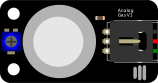
This SVG shows the breadboard layout for a gas sensor circuit.
Photograph Example
Including a photograph with specific sizing:
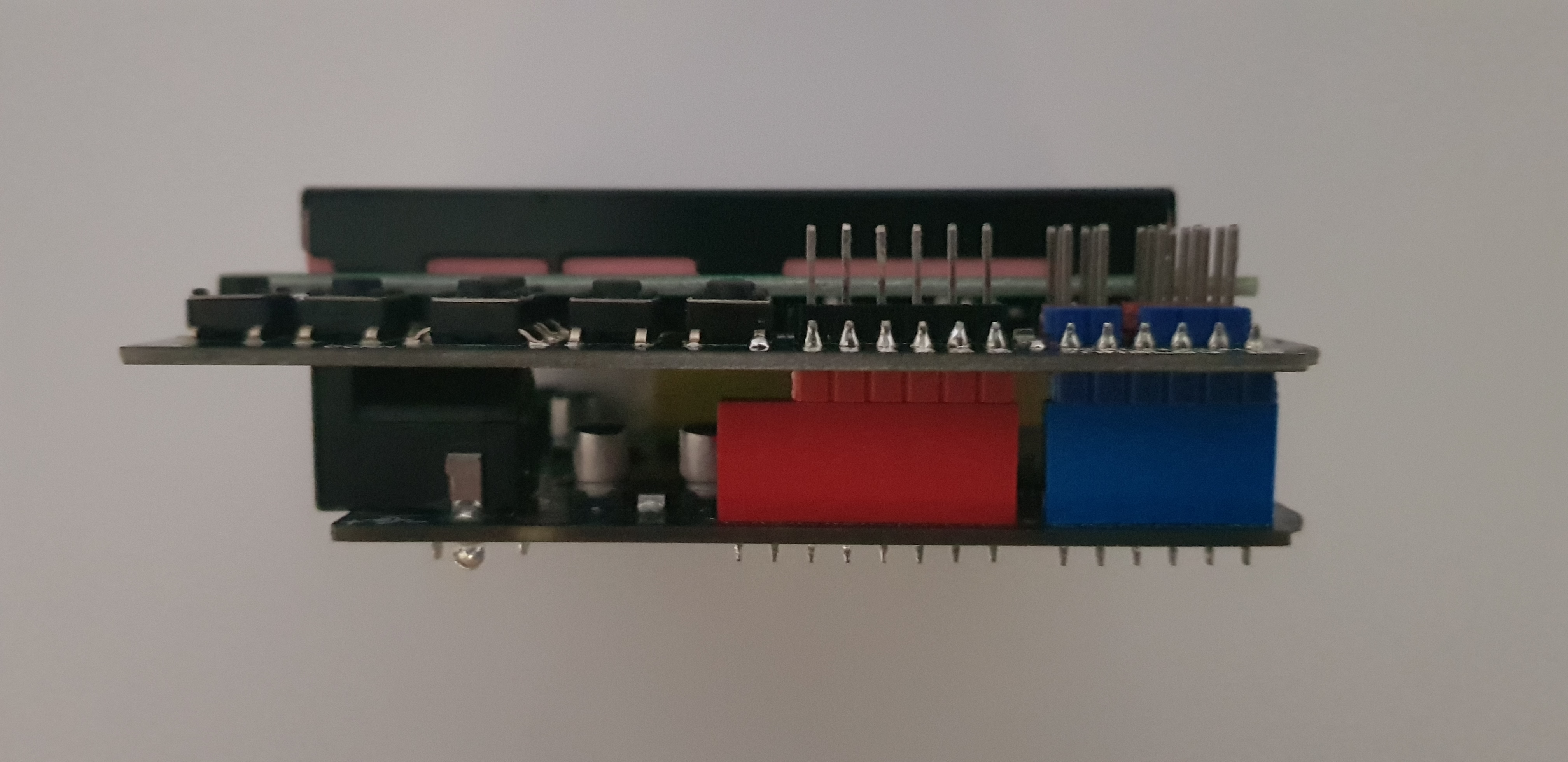
Figure with Caption
Using the figure directive to add captions:
Figure 1: Gas Sensor V1 Breadboard Layout - This diagram shows the complete wiring schematic for connecting a gas sensor to a microcontroller using a breadboard.
Advanced Image Options
Responsive Images
You can make images responsive by using percentage widths:
Side-by-side Images
For comparing images, you can place them side by side using tables:
Image Alignment Options
Left Aligned
This text flows around the left-aligned image. You can see how the image appears on the left side of the page while the text wraps around it. This is useful for inline images that complement the text content.
Right Aligned
Similarly, right-aligned images appear on the right side with text flowing around them on the left. This creates an attractive layout for documentation.
Best Practices for Images
File Formats
SVG - Best for diagrams, logos, and scalable graphics
PNG - Good for screenshots and images with transparency
JPG - Suitable for photographs and complex images
Optimization Tips
File Size: Keep images optimized for web
Alt Text: Always provide descriptive alt text for accessibility
Width/Height: Specify dimensions to prevent layout shifts
Format: Choose the right format for your content type
Image Organization
Store images in a dedicated
media/orimages/directoryUse descriptive filenames
Organize by categories if you have many images
Consider version control for binary files
Code Example: Adding Images
Here’s the reStructuredText syntax for the images shown above:
# Basic image
.. image:: media/Gas_V1_breadboard.svg
   :width: 400
   :alt: Gas sensor breadboard diagram
   :align: center

# Figure with caption
.. figure:: media/20180807_121321.jpg
   :scale: 50%
   :alt: Sample photograph

   This is the figure caption that appears below the image.

# Responsive image
.. image:: media/Gas_V1_breadboard.svg
   :width: 100%
   :alt: Responsive SVG diagram
Troubleshooting Images
Common Issues
Image not showing: Check the file path is correct relative to the source file
Broken layout: Ensure width/height values are reasonable
Large file sizes: Optimize images before adding to documentation
Missing alt text: Always include alt text for accessibility
File Path Examples
# From root directory
.. image:: media/image.png

# From subdirectory
.. image:: ../media/image.png

# From _static directory (copied during build)
.. image:: /_static/image.png
See Also
Examples - More code examples and snippets
Getting Started - Basic setup and configuration